Compensation
Editing compensation requires a license; the 30-day trial includes it.
Each file is compensated with its own matrix
Section titled “Each file is compensated with its own matrix”When a file carries a spillover matrix written by your acquisition software, the app compensates it with that matrix as soon as it opens. Every file is compensated independently, with its own matrix — open twelve tubes from a run and each one is compensated with the matrix it was acquired with.
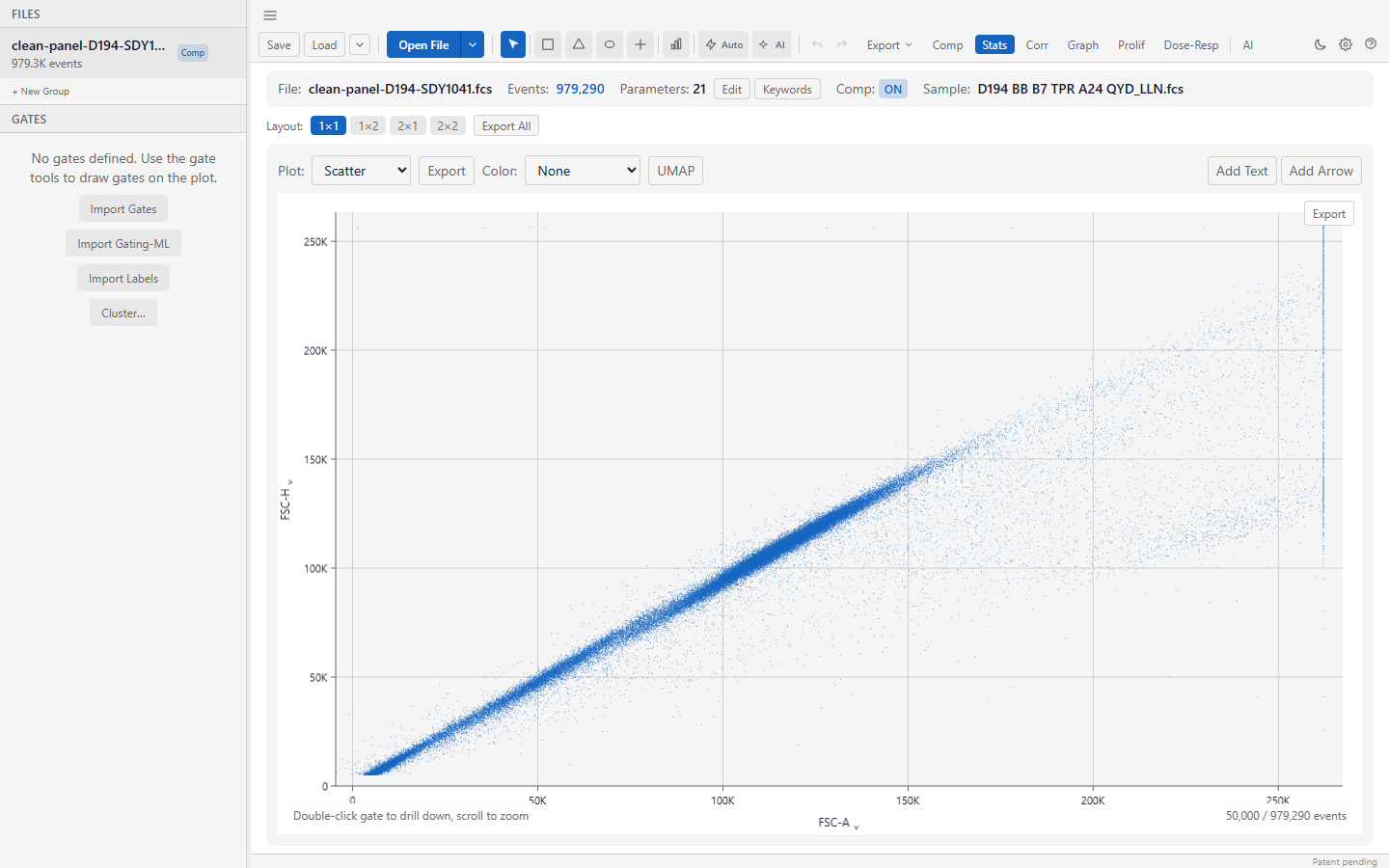
The file list marks each file’s compensation, and the file bar shows the active file’s state. A file without a matrix of its own simply opens uncompensated.
The badge beside each file in the file list tells you which matrix its numbers use:
| Badge | Meaning |
|---|---|
| Comp | Compensated with its own acquisition matrix. |
| Comp* | Compensated with a different matrix — edited, imported, computed from controls, or applied from another file. |
| Comp ⚠ | Compensation is on, but the matrix names channels this file does not have, so its counts and statistics cannot be computed. Turn compensation off for the file, or apply a matrix that fits it. |
| (none) | Uncompensated: raw values. |
Turn compensation off for a file with the Comp ON / Comp OFF toggle in the compensation panel. It affects that file only.
Where the matrix comes from
Section titled “Where the matrix comes from”Four routes:
- From the FCS file — the default, applied automatically as above.
- Computed from single-stain controls. Open the controls and let the app derive the matrix (below).
- Imported from a CSV, from another tool.
- Edited cell by cell, which is what you end up doing when one channel pair is stubborn and everything else is right.
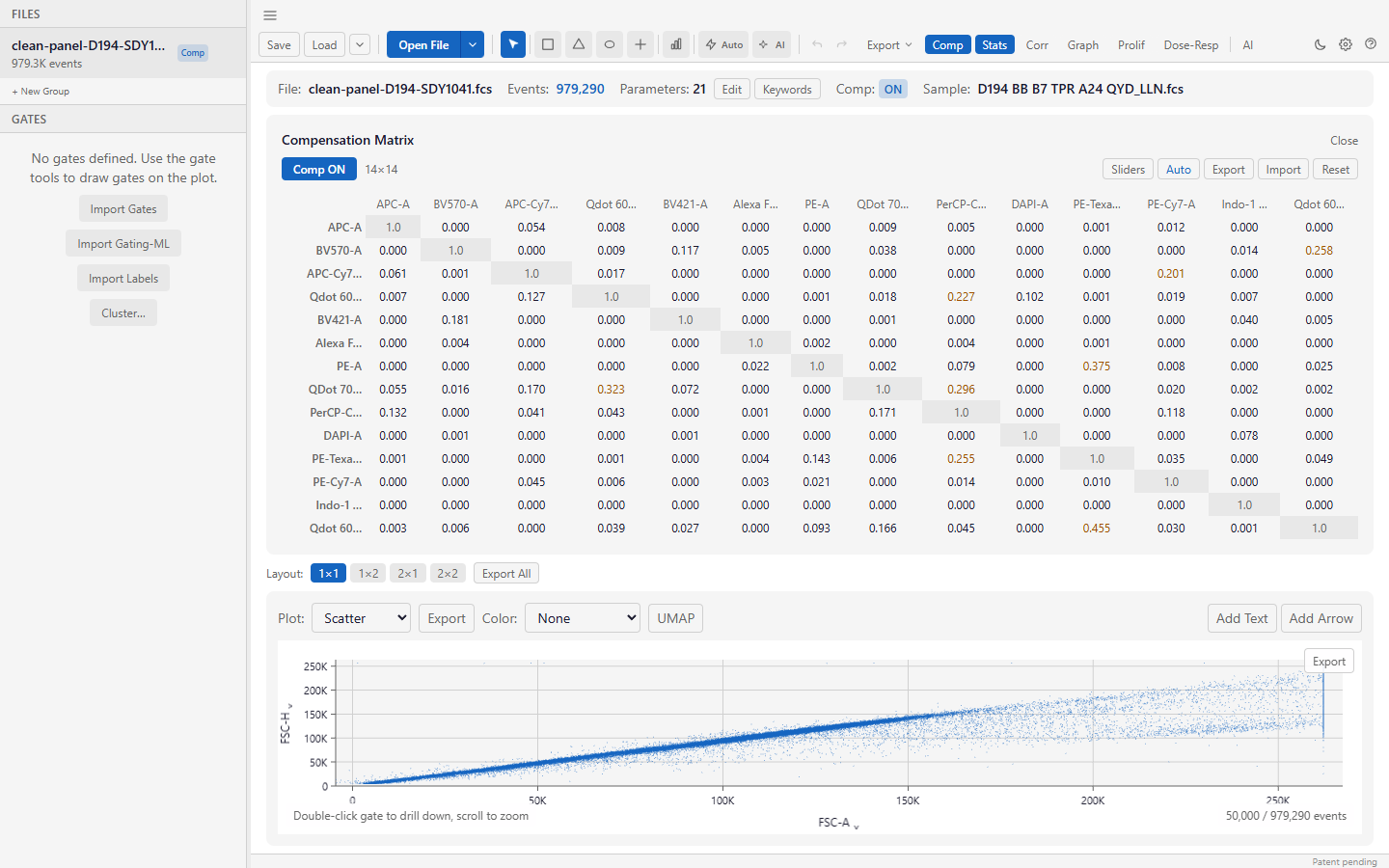
Open the panel with Comp in the toolbar. Click any coefficient to edit it; Sliders gives a fine-adjustment view.
Editing, and applying one matrix to several files
Section titled “Editing, and applying one matrix to several files”An edit changes the active file only. Its badge becomes Comp* so it is always visible that this file no longer uses its acquisition matrix.
To use the same matrix for several files — after computing it from controls, for example — choose Apply to all open files in the compensation panel (shown when more than one file is open). It copies the active file’s current matrix, with compensation on, to every open file whose channels it fits, and tells you which files were changed and which were skipped because the matrix names channels they do not have.
Where compensation applies
Section titled “Where compensation applies”Compensation is applied consistently everywhere a number is computed from a file’s events: plots, gate counts and statistics, auto-gating, Graph Builder’s value mode and its statistical tests, event export, proliferation analysis, and the AI assistant’s own statistics. A file’s numbers are never compensated in one view and raw in another.
Still computed without compensation in this version: clustering into populations, UMAP embeddings, FMO threshold suggestions and colour-by-parameter.
Saved workspaces
Section titled “Saved workspaces”A workspace saves each file’s compensation — matrix and on/off — and reopens exactly as saved, file by file.
Workspaces saved by version 0.1.x stored one matrix for the whole workspace. They reopen with that matrix applied to every file if compensation was on when saved, and with every file uncompensated if it was off.
Compensation in exports
Section titled “Compensation in exports”- The statistics CSV ends with a Compensation column for each file:
on,on*(a matrix other than its own),off, ormismatch. - Event exports label compensated channels
Comp-…, so a compensated column is never mistaken for a raw one. - Gating-ML export records the compensation each gate was drawn in: the file’s own matrix, none, or an edited matrix written into the document. Gating-ML import keeps every gate in the compensation it declares: if that differs from what the file has applied, the app asks before switching, and gates it cannot honour are skipped and listed.
The Cytogence gating model checks compensation
Section titled “The Cytogence gating model checks compensation”The Cytogence gating model fits its gates using each file’s own acquisition matrix. If you have turned compensation off or changed the matrix for a file, the app asks before applying the model’s gates — offering to switch back to the acquisition compensation — because the same gate would count a different population.
Auto-compensation from single-stain controls
Section titled “Auto-compensation from single-stain controls”Give the app your single-stain controls and it computes the spillover coefficients. This is the route to prefer when you have the controls: a hand-tuned matrix drifts between operators, and a computed one is reproducible.
Check the result rather than trusting it: compensation is only as good as the controls, and a control that is dim, saturated or mislabelled produces a confident and wrong matrix.
FMO thresholds
Section titled “FMO thresholds”Fluorescence-minus-one controls establish where “positive” actually starts for a channel in the context of your full panel. The app can calculate thresholds from FMO controls, which is a more defensible boundary than eyeballing a gate on the fully-stained sample.
Reading a compensated plot
Section titled “Reading a compensated plot”Compensation subtracts signal, so negative values are normal afterwards. If your dim populations disappear or smear against the axis, that is a scale problem, not a compensation problem — switch the axis to logicle, asinh or hyperlog.
Order of operations
Section titled “Order of operations”- Confirm channel names are right — see the parameter editor in The interface.
- Check each file’s compensation badge; edit or compute a matrix if needed.
- Choose scales.
- Gate.
Changing compensation after gating means the gates were drawn in a coordinate space that no longer exists. The app will not stop you, but check every gate afterwards.
Exporting the matrix
Section titled “Exporting the matrix”The matrix can be exported (Export in the compensation panel), which is worth doing for the record: it is part of how a result was produced, and a figure without it is not reproducible.
On correctness
Section titled “On correctness”The compensation implementation is checked against FlowKit — an independent reference implementation — and agrees to within 6×10⁻⁸ on an asymmetric test matrix, with a round-trip test pinning the convention so the transpose cannot silently invert.
That is worth stating plainly because a transposed spillover matrix is a real and notoriously quiet failure mode: it produces plots that look plausible and numbers that are wrong.